

How to Choose a GPU: Avoid These 5 Costly Mistakes
So, you’re building a PC or upgrading your trusty old rig. Awesome. You’ve picked out most of the parts, but then you hit a wall: the graphics card. Suddenly, you’re drowning in a sea of acronyms and numbers. VRAM, CUDA Cores, DLSS, FSR, RTX 4070 Ti SUPER… what does any of it even mean?
It feels like you need an engineering degree just to not get ripped off.
Let’s cut the crap. Buying a Graphics Processing Unit (GPU) is the most critical decision for any gaming or creative PC build. It’s also the easiest place to waste a ton of money. The market is filled with hype, confusing product names, and marketing jargon designed to bamboozle you into overspending.
But it doesn’t have to be that way.
This guide is for you—the aspiring PC gamer, the budding content creator, the parent trying to figure out what their kid actually needs to play Fortnite. We’re going to break it all down, explain the tech in plain English, and walk you through the five most common—and costly—mistakes people make when buying a GPU.
No jargon. No fluff. Just straight talk to help you get the best bang for your buck.
Mistake #1: Believing More VRAM is Always Better
You see two cards. One has 8GB of VRAM. The other has 16GB. The 16GB one must be better, right? Not so fast. This is the oldest trick in the book, and falling for it is a classic rookie mistake.
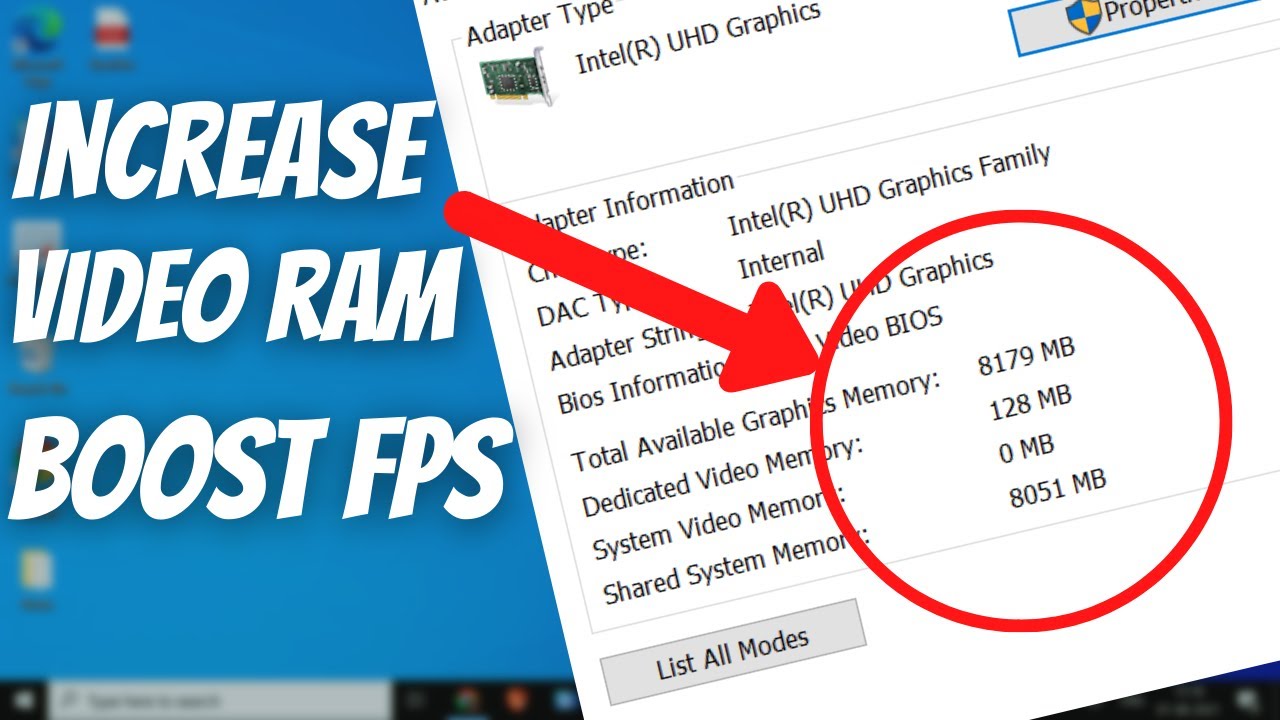
What is VRAM, anyway?
Think of VRAM (Video Random Access Memory) as the GPU’s personal workbench. It’s a super-fast memory chip right on the graphics card where it temporarily stores all the textures, models, and other visual data it needs to render the game you’re playing.
- Bigger Workbench (More VRAM): A larger workbench lets the GPU hold more assets at once. This is crucial for high-resolution textures (like in 4K gaming) and complex scenes. If the workbench is too small, the GPU has to constantly go back to your computer’s main storage (your slow hard drive or SSD) to grab what it needs. This causes stuttering and lag.
- The Catch: Having a giant workbench doesn’t help if the worker (the actual GPU chip) is slow. A weak GPU with tons of VRAM is like hiring a clumsy, slow-moving craftsman and giving them a massive, state-of-the-art workshop. They still won’t build things any faster.
Manufacturers often create “VRAM traps”—cheaper cards loaded with excessive VRAM. They know it’s an easy spec to market. They’ll sell a GPU that’s only powerful enough for 1080p gaming but slap 16GB of VRAM on it. You pay a premium for that VRAM, but the GPU itself is too weak to ever use it effectively.
How to Avoid This Mistake:

Focus on the right amount of VRAM for your target resolution:
- 1080p Gaming: 8GB of VRAM is still the sweet spot. It’s more than enough for almost any game at this resolution. A 12GB card offers some future-proofing, but don’t pay a huge premium for it.
- 1440p Gaming: 12GB is the ideal target here. 8GB can work for many titles, but you’ll have to turn down texture settings in newer, more demanding games. 16GB is great if it fits your budget.
- 4K Gaming: 16GB of VRAM is the baseline. This is where having a large VRAM buffer really matters, as 4K textures are massive.
Mistake #2: Fixating on Clock Speed and Cores in a Vacuum
You’ll see these numbers plastered all over the box: “Boost Clock up to 2,755 MHz!” or “10,240 CUDA Cores!” They sound impressive, but comparing them between different GPU models or brands is completely useless.
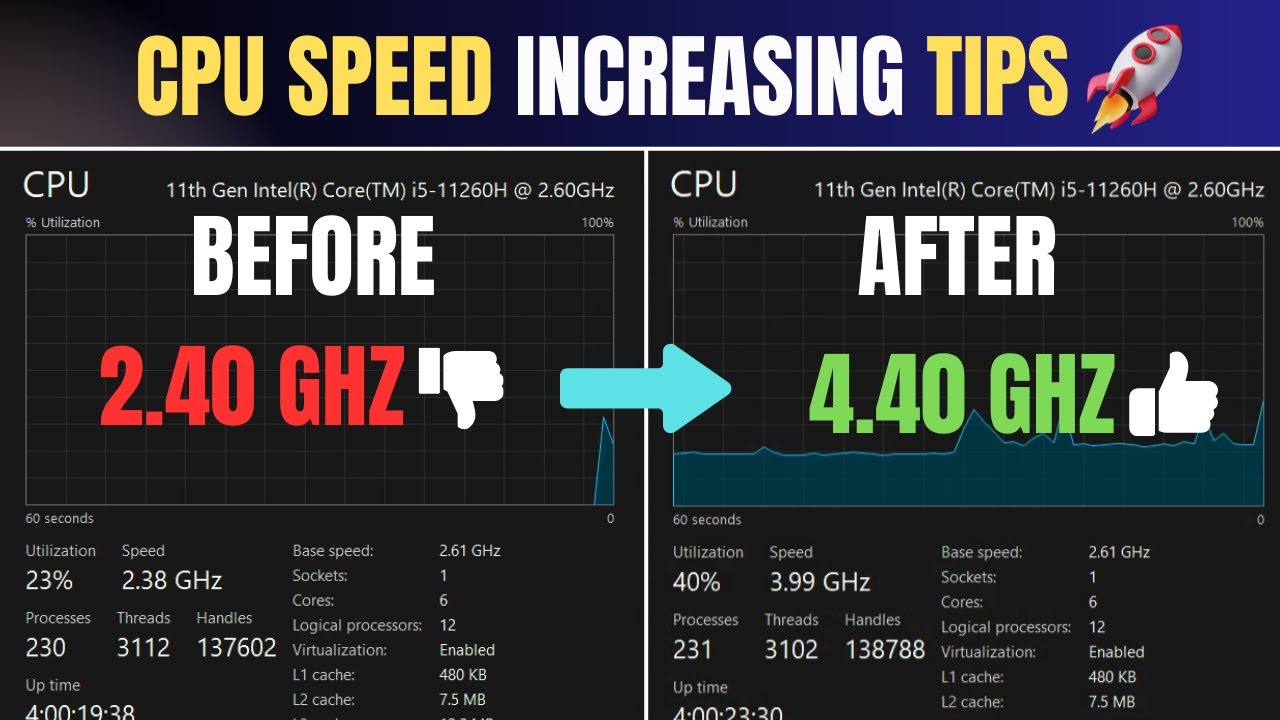
Let’s break down what they are first.
- Clock Speed (MHz/GHz): This is essentially how fast the GPU’s processor runs. A higher number means it can perform calculations more quickly. Think of it as the speed at which the workers on your workbench operate.
- Cores (Nvidia’s CUDA Cores vs. AMD’s Stream Processors): These are the individual workers. More cores mean the GPU can work on more tasks at the same time (parallel processing).
So, why is comparing them a mistake?
Because the architecture—the design of the workers and the entire workshop—is different between generations and brands. An NVIDIA CUDA Core is not the same as an AMD Stream Processor. They are designed differently and do work in fundamentally different ways.
It’s like comparing the engine RPM of a car and a motorcycle. A motorcycle engine might spin at 12,000 RPM while a car engine spins at 6,000 RPM. Does that mean the motorcycle is twice as powerful? Of course not. The engine design, size, and vehicle weight are completely different.
Similarly, an NVIDIA RTX 4070 might have fewer cores and a lower clock speed than a last-gen RTX 3080, but because its cores are more efficient and its architecture is more advanced, it can perform significantly better.
How to Avoid This Mistake:
Ignore the spec sheet comparisons. Seriously. The only thing that matters is real-world performance. How do you find that?
- Watch Independent Reviews: Look for benchmarks from trusted, independent sources. Channels like Gamers Nexus, Hardware Unboxed, and Linus Tech Tips on YouTube provide exhaustive, unbiased performance charts.
- Search for “[GPU Name] vs [GPU Name] [Game You Play]”: For example, search “RTX 4060 vs RX 7600 Cyberpunk 2077.” This will show you exactly how the cards perform in the games you care about, at the resolution you want to play at.
- Focus on Frames Per Second (FPS): This is the ultimate metric. A higher FPS means a smoother gameplay experience. This is the number that truly tells you which card is better.
Mistake #3: Overspending on a Card Your System Can’t Handle (Bottlenecking)
You just dropped $1,200 on a brand-new NVIDIA GeForce RTX 4080 SUPER. You slot it into your five-year-old PC that has an Intel Core i5-9400F processor. You fire up a game, and… it runs terribly. What gives?

You’ve just created a bottleneck.
Think of your PC as an assembly line. The CPU (Central Processing Unit) prepares the data (the “frames”) and sends instructions to the GPU. The GPU then takes those instructions and renders the beautiful graphics you see on screen.
A bottleneck happens when one component is significantly slower than the other, holding the whole system back.
- CPU Bottleneck: If you pair a powerful GPU with a weak CPU, the GPU will be sitting around waiting for instructions. The CPU simply can’t prepare the frames fast enough. It’s like having a world-class chef (your GPU) who’s stuck waiting for a kid with a butter knife (your CPU) to chop vegetables.
- GPU Bottleneck: This is actually what you want in a gaming PC. It means your GPU is working at 100% of its capacity to produce the highest quality graphics possible, while your CPU has plenty of headroom.
Pairing a top-tier card with an old or budget-level CPU is the most common way to waste money in PC building. You’ve paid for performance that you literally cannot use.
How to Avoid This Mistake:
- Aim for a Balanced System: Your CPU and GPU should be in a similar performance tier. If you’re buying a mid-range GPU (like an RTX 4060 or RX 7700 XT), pair it with a modern mid-range CPU (like an AMD Ryzen 5 7600X or Intel Core i5-13600K).
- Consider Your Resolution: The higher the resolution you play at, the more the workload shifts to the GPU. At 4K, even a slightly older CPU can often keep up with a powerful GPU. But at 1080p, the CPU’s job is much more important, and a weak CPU will severely limit your frame rate.
- Use a Bottleneck Calculator (With a Grain of Salt): Websites have “bottleneck calculators,” but treat them as a rough guideline, not gospel. They can give you a general idea of a good pairing, but real-world reviews are always more reliable.
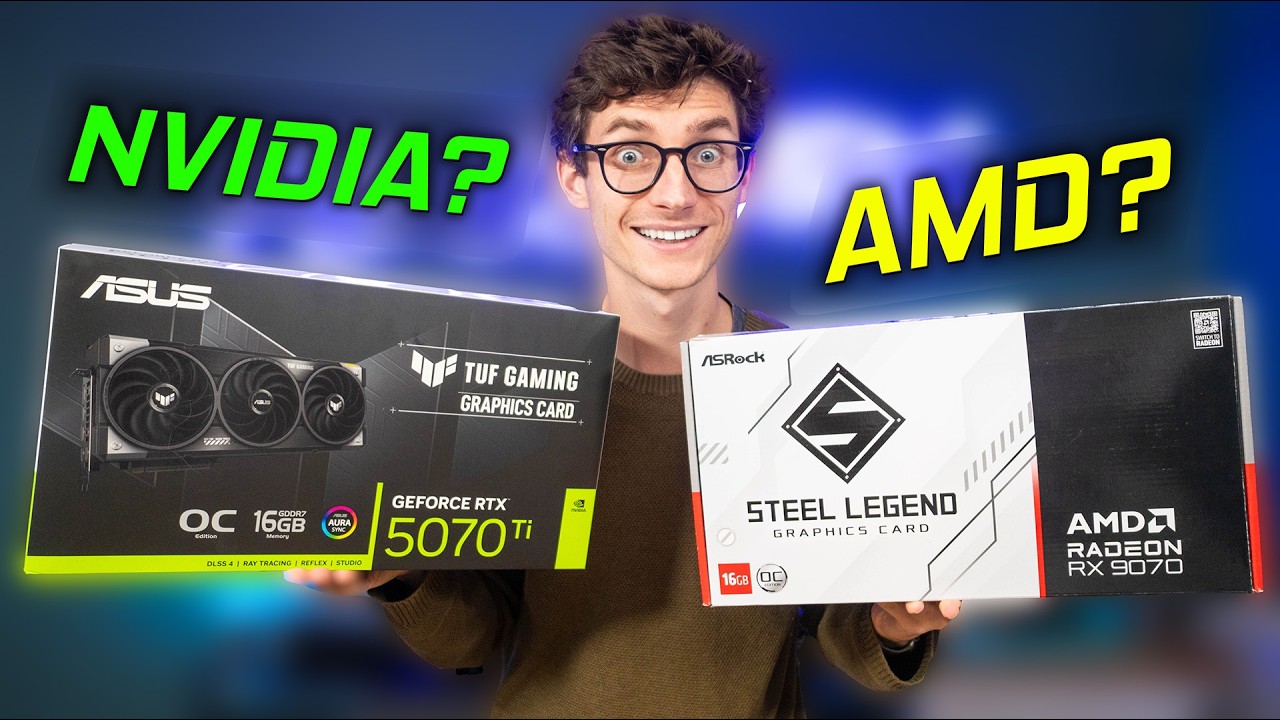
Mistake #4: Ignoring the “Ecosystem” and Software Features
Ten years ago, you bought a graphics card based purely on which one gave you more frames per dollar. Today, it’s more complicated. NVIDIA and AMD aren’t just selling hardware; they’re selling an entire ecosystem of software features that can dramatically impact your experience. Ignoring these is a huge mistake.
Here are the big ones you need to know:
NVIDIA’s Big Guns (The “Green Team”):
- DLSS (Deep Learning Super Sampling): This is NVIDIA’s secret sauce. It’s an AI-powered technology that renders the game at a lower internal resolution and then intelligently “upscales” it to your target resolution (like 1440p or 4K). The result? A massive FPS boost with image quality that is often nearly identical—or sometimes even better—than native resolution. It’s like magic.
- Frame Generation: A newer feature of DLSS 3, this uses AI to generate and insert entirely new frames in between the normally rendered ones, boosting FPS even further. It feels incredibly smooth, though it adds a tiny bit of input lag, making it best for single-player games.
- Ray Tracing Performance: Ray tracing is a graphics technique that simulates how light really works, creating incredibly realistic reflections, shadows, and lighting. It’s very demanding. While both brands support it, NVIDIA currently holds a significant performance lead when ray tracing is enabled.
- CUDA: If you’re a content creator who uses software like Adobe Premiere Pro, DaVinci Resolve, or Blender, NVIDIA’s CUDA technology gives them a major performance advantage in video rendering and 3D modeling.
AMD’s Counter-Punch (The “Red Team”):
- FSR (FidelityFX Super Resolution): This is AMD’s answer to DLSS. It’s also an upscaling technology that boosts FPS. The key difference is that FSR is open source. This means it works on any graphics card, including older NVIDIA and AMD models, and even Intel’s GPUs. While its image quality has historically been a step behind DLSS, the latest versions are getting very competitive.
- HYPR-RX: This is a one-click software suite in AMD’s driver that automatically enables FSR, Anti-Lag+, and Radeon Boost to improve performance and responsiveness across all your games. It’s designed for simplicity and ease of use.
- Price-to-Performance (Rasterization): In traditional gaming performance (without ray tracing or upscaling), AMD often offers more raw FPS per dollar, especially in the mid-range market.
How to Choose:
Ask yourself what you value more:

- Do you want the absolute best ray tracing performance and the most mature upscaling tech (DLSS)? Go with NVIDIA.
- Are you a competitive gamer who values high frame rates and open standards, or are you on a tighter budget and want the most raw performance for your money? AMD is likely your best bet.
- Are you a creative professional? NVIDIA’s CUDA advantage is hard to ignore.
Mistake #5: Buying the Wrong Card for Your Monitor
This one sounds simple, but it trips up so many people. You get a great deal on a GPU, plug it in, and realize you’ve made a terrible mismatch.
Your monitor and your GPU are a team. They need to be in sync. Buying one without considering the other is like buying expensive running shoes when you only plan to walk.
The Golden Trio: Resolution, Refresh Rate, and GPU Power
- Resolution: This is the number of pixels on your screen (e.g., 1080p, 1440p, 4K). More pixels mean a sharper image, but they also require exponentially more GPU power to drive.
- Refresh Rate (Hz): This is how many times your monitor updates the image per second. A standard monitor is 60Hz. A gaming monitor can be 144Hz, 240Hz, or even higher. A higher refresh rate leads to much smoother motion.
- Your Goal: The goal is for your GPU’s Frames Per Second (FPS) output to match or exceed your monitor’s Refresh Rate (Hz).
Common Mismatches:
- The Overkill: You buy an RTX 4090, the most powerful consumer GPU on the planet, and plug it into a 1080p 60Hz monitor. You have just wasted over $1,000. That GPU is capable of pushing hundreds of frames per second, but your monitor can only display 60 of them. All that extra power is doing nothing.
- The Under-Performer: You buy a shiny new 1440p 165Hz gaming monitor but pair it with a budget RTX 4050. You fire up a new game and you’re only getting 45 FPS. The gameplay is choppy, and you’ve completely wasted the potential of your high-refresh-rate monitor.
How to Avoid This Mistake:
Buy your GPU for the monitor you have or the one you plan to buy.
- For a 1080p, 60-75Hz Monitor: A budget-friendly card like an NVIDIA RTX 3050/4060 or an AMD RX 6600/7600 is perfect.
- For a 1080p, 144Hz+ Monitor (Competitive Gaming): You’ll want a stronger mid-range card to ensure you’re consistently hitting high frame rates. Think RTX 4060 Ti or RX 7700 XT.
- For a 1440p, 144Hz+ Monitor: This is the current sweet spot for high-fidelity gaming. You should be looking at an RTX 4070 SUPER or an AMD RX 7800 XT for a great experience.
- For a 4K, 60Hz+ Monitor: This is high-end territory. You’ll need a powerful GPU like an RTX 4080 SUPER or RX 7900 XTX to get smooth frame rates. And for 4K at high refresh rates, you’re in RTX 4090 territory.
The Bottom Line
Buying a graphics card doesn’t have to be a nightmare. If you can avoid these five common pitfalls, you’re already ahead of 90% of buyers.
Let’s recap:
- Don’t chase VRAM. Match it to your target resolution.
- Ignore spec sheet wars. Watch real-world benchmarks instead.
- Build a balanced PC. Don’t pair a super-GPU with a weakling CPU.
- Consider the ecosystem. DLSS and superior ray tracing vs. FSR and raw value.
- Match your GPU to your monitor. Don’t leave performance on the table.
Do your research, be honest about your needs and budget, and you’ll build a system that brings you joy for years to come.
Now I want to hear from you. What’s the biggest question you still have about buying a GPU? Are you planning a build right now? Drop a comment below!

